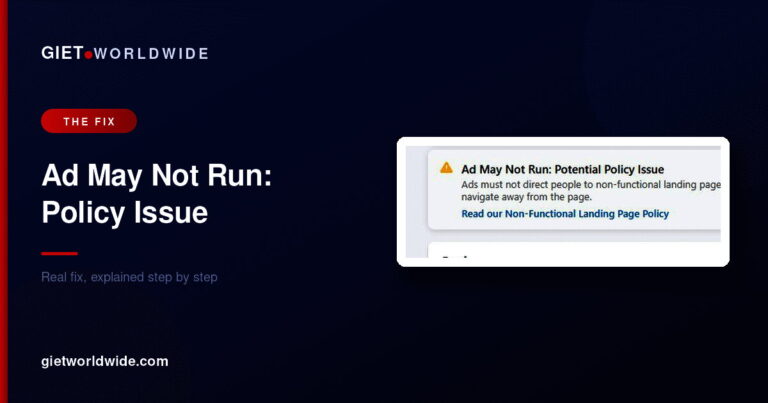
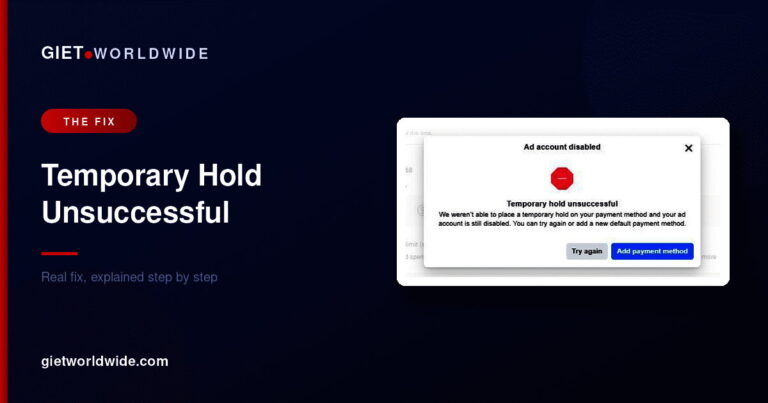
If your Facebook ad shows “Preparing”, Meta is generally processing the ad and getting it ready for delivery after submission or review. A short Preparing period can be normal, but if the status remains unchanged for an unusually long time, you should check the campaign, ad account, billing, audience, creative and delivery settings rather than repeatedly editing everything.
For Ghanaian businesses running campaigns for products, services, WhatsApp enquiries or website sales, this can be frustrating because you may have already funded the campaign and expect impressions immediately.
The good news is that Preparing does not automatically mean your ad has been rejected.
What Does “Preparing” Mean on Facebook Ads?
“Preparing” is a delivery status you may see in Meta Ads Manager while Meta processes an approved or newly published ad before it begins delivering.
Think of it as a transition between the setup/review process and actual delivery.
The exact time can vary. Some campaigns move through the stage relatively quickly, while others may take longer depending on the campaign configuration, account circumstances, edits and Meta’s systems.
Do not treat 15 or 30 minutes as a guaranteed deadline. The timing can vary, so the important question is whether the campaign eventually starts delivering.
Once the ad begins serving, you should normally see delivery reflected in your reporting rather than simply relying on the status label.
Facebook Ads Preparing Problem Solved: What to Do
If your ad has remained in Preparing for longer than you reasonably expect, work through these checks in order.
1. Give the campaign some time
First, don’t panic and start changing five different settings.
If the ad was just published or approved, allow Meta’s systems time to process it. Constantly editing the campaign can create additional processing or review events.
If it has only been Preparing for a short period, waiting is often the best first step.
2. Check the campaign, ad set and ad levels
Open Ads Manager and inspect the campaign at all three levels:
- Campaign
- Ad set
- Ad
Look for warnings, errors, rejected components or delivery restrictions.
An ad can appear fine at campaign level while an issue exists at the ad set or individual ad level.
Also check whether the campaign is actually switched on and whether the relevant ad set and ad are active.
3. Check your payment method and account status
A delivery problem is not always caused by the creative.
Check your billing section and confirm that your payment method is working. This is particularly important if you are running ads with a Ghanaian payment card and the bank has declined, restricted or failed to authorise a transaction.
If you use a card alongside business payment processes such as MTN Mobile Money, Telecel Cash, AirtelTigo Money, Paystack or Hubtel, remember that the payment method available for your specific Meta account depends on Meta’s supported options and account setup.
Don’t assume that adding money somewhere automatically clears a Meta billing issue.
4. Review the audience and delivery settings
Open the ad set and review:
- Location
- Age range
- Gender
- Custom audiences
- Exclusions
- Budget
- Schedule
- Optimization event
- Placements
Avoid making unnecessary changes simply to force an ad out of Preparing.
However, if you identify a genuine configuration problem, correct it and republish the affected component.
5. Check the creative and destination
A technical-looking Preparing status can sometimes distract you from a bigger issue with the actual ad.
Review your:
- Primary text
- Image or video
- Headline
- Call-to-action button
- Landing page
- WhatsApp destination
- Website URL
Make sure the destination works properly on a mobile phone.
For example, if a Ghanaian clothing business is sending traffic to a product page but the page is slow, broken or difficult to use on mobile, fixing the ad status alone won’t solve the campaign’s business problem.
6. Refresh Ads Manager and your browser
If the status appears stuck, refresh Ads Manager and sign out and back in if necessary.
You can also test the account in another browser or an incognito/private window.
Clearing browser cache and site data may help when the interface itself is displaying stale information, but this should not be your first assumption. Browser cache problems are different from an actual Meta delivery problem.
7. Make one controlled change if the ad genuinely appears stuck
If you’ve checked the obvious issues and the campaign remains stuck, make one meaningful, controlled adjustment rather than changing everything simultaneously.
For example, you might correct a placement, audience setting or creative issue and then republish.
Afterward, monitor the campaign instead of repeatedly editing it.
This matters because changing several variables at once makes troubleshooting harder. You won’t know which change actually affected delivery.
Quick Troubleshooting Table
| What you see | What to check first |
|---|---|
| Preparing shortly after publishing | Wait and monitor |
| Preparing for an unusually long period | Check campaign, ad set and ad |
| Payment warning | Review billing/payment method |
| Policy or review warning | Check the affected ad |
| No impressions after becoming active | Check budget, audience, placements and optimization |
| Ads Manager looks inconsistent | Refresh, sign in again or test another browser |
| Still stuck after troubleshooting | Contact Meta support or get professional account-level help |
What You Should Not Do When Your Ad Says Preparing
Some advertisers make the problem worse by making random changes.
Avoid:
- Duplicating the same campaign repeatedly
- Changing the audience every few minutes
- Constantly editing the creative
- Increasing the budget just because the ad says Preparing
- Deleting and recreating the entire ad account
- Assuming Preparing automatically means rejection
- Blaming your Facebook Page without checking the actual delivery status
Meta’s advertising systems are complex, so troubleshooting should be systematic rather than based on guesswork.
Meta’s own business resources provide guidance around advertising setup, delivery and account management, although some Help Center resources require you to be logged into Facebook to view the full details.
When Should You Get Professional Help?
If you’ve checked the campaign, billing, audience, creative and account status and your ad remains stuck, the issue may require deeper investigation.
At GIET, our approach is not simply to tell a business owner to “boost the post again.” We look at the campaign structure, objective, audience, creative, tracking and conversion path together.
That matters because getting an ad to Active is only the first step.
An ad can be Active and still produce poor results if the offer, targeting, creative or landing experience is wrong.
For businesses that want hands-on support, see our Facebook and Instagram advertising services.
How to Prevent Facebook Ad Delivery Problems
Before publishing your next campaign, use this simple checklist:
- Confirm your campaign objective.
- Check that your audience is appropriate.
- Review your placements.
- Test your creative on mobile.
- Confirm your destination URL or WhatsApp flow.
- Check your billing information.
- Review the ad for policy issues.
- Publish and monitor the campaign without making unnecessary edits.
- Look at actual delivery metrics rather than relying only on the status label.
For Ghanaian businesses, also test the entire customer journey yourself. If your ad generates WhatsApp enquiries, send yourself a test message. If it sends customers to a website, complete the journey from landing page to enquiry or checkout.
Final Thoughts
If you’re searching for Facebook ads preparing problem solved, the most important point is this: Preparing does not necessarily mean something is wrong. A newly submitted ad may simply be moving through Meta’s processing and delivery systems.
If it remains there longer than expected, troubleshoot methodically. Check the campaign hierarchy, billing, audience, placements, creative, destination and account warnings before making major changes.
And remember that successful Facebook advertising is bigger than getting a status to change from Preparing to Active. The real goal is to build a campaign that reaches the right Ghanaian customers and gives them a clear reason to take action.
If you need help setting up, troubleshooting or improving your Facebook and Instagram campaigns, speak with GIET about your advertising needs.
Is your Facebook ad stuck on Preparing or not delivering as expected? Let GIET review your campaign setup and help you identify the real issue.
Get help with Facebook & Instagram advertising or book a call with GIET.
FAQs
There is no universal guaranteed time. A newly submitted ad may move through Preparing relatively quickly, but processing and delivery timing can vary depending on the campaign and account circumstances.
No. Preparing does not automatically mean rejection. Check Ads Manager for an explicit rejection, policy warning or delivery error before assuming the ad has been rejected.
Possible causes include ongoing processing, campaign or ad-set configuration issues, billing problems, account restrictions, creative or destination issues, or an Ads Manager display problem.
Don’t repeatedly edit it without identifying a reason. First check the campaign, ad set, ad, billing and account status. If you find a genuine issue, make a controlled correction and monitor the result.
It can help if your browser is displaying stale or incorrect information, but it will not necessarily fix an underlying Meta delivery or account problem.
Check for account, billing, policy and campaign errors first. If nothing explains the problem, try accessing Ads Manager from another browser or device and consider contacting Meta support or a qualified Facebook advertising professional.
Still stuck after trying this? Grab our free Meta Ad Account Recovery Checklist, or book a private 1-on-1 session with David Asaana and we’ll work through it together — see how it works (0).
Related guides